Myjade Aqara Cube T1 Pro Setup for T1’s to Echo Show 10
Important Notice - The video below shows the old way we used to get readings read out to us with Sugarmate, which Ceased to work in Feb 2025
Note - Jade is the new way now in 2025 to have your reading read out to you!
Jade the new way now in 2025!
Short Intro
The Aqara T1 Pro Cube is a sleek, smart home controller that interacts with your devices through gestures, rotations, and taps. Here's a quick intro to its key features and setup:
The Aqara T1 Pro Cube is a highly efficient device designed to provide glucose readings by responding to specific dice number positions. This versatile device not only aids in monitoring blood sugar levels but also offers home automation capabilities.
Additionally, the presence sensors or motion detectors enable the automatic reading of glucose levels at any location within your home.
The Aqara T1 Pro Cube is a sophisticated smart home controller that interfaces with various devices through gestures, rotations, and taps. Below is an overview of its primary features and setup process:
Key Features
✅ Six Gestures: Shake, rotate, flip, push, slide, and tap for different controls.
✅ 360° Rotation: Adjust lights, thermostats, or volume by turning the cube.
✅ Smart Home Hub Compatible: Works with Aqara Hub, Apple HomeKit, Google Home, and Amazon Alexa.
✅ Wireless & Battery-Powered: Uses a CR2450 coin cell battery (lasts ~2 years).
✅ Customizable Controls: Assign actions in the Aqara Home or Apple Home app.
Important Notice
Sadly, Sugarmate is no longer doing there App now January ,1 2025, for it to work in Amazon Alexa App to have your Blood readings read out with Automations. Since when I wrote these setups up last year, so I will have to re check on my setups to change them due me having me Finding an alternative now called My jade which is a good replacement, in 2025
Notes
My Jade has kindly done a New Alexa-Only Plan for SugarMate Users due to me asking them to help us all out.
We’ve heard that SugarMate has removed their Alexa integration, making life harder for vision-impaired users. So, we’re stepping in with a simple, affordable Alexa-only plan!
This plan will announce your blood sugar levels through Alexa for a Click Here
I will be trying to help you set up an Echo Show 10 (3rd Gen) or an Echo Dot or a Samsung Tablet. So that , it will read out your Glucose readings. I will not be going through and explaining the unboxing as this as been done in other videos.
Hardware Items you are going to need
Due to me setting up on a PC computer and not a Mac, I did not have any Apple Items to use Homekit to get into Home Assistant has I wanted too, so to get around this I got a HomePod Mini. So you Harware needs may vary to mine!
- Aqara Cube T1 Pro (Also REQUIRES AQARA ZIGBEE 3.0 HUB)
- Aqara Smart Hub E1 Aqara Smart Hub E1 (2.4 GHz Wi-Fi Required)
- Echo Show 10 (3rd generation) or an Echo Dot (5th generation, 2022 release) Or your Samsung Mobile or Tablet
- Android Mobile Device in my case a (Samsung Note10 + But I have also tested on S24 Ultra and S25 Ultra and still works)
- Apple HomePod Mini (HomePod Mini)
Software you will need to have Setup
- Nightscout
(Which I will not be showing you how to setup in these instructions) But will add a link for you to do it if you have not done so already
- My Jade on a PC (You will need to sign up)
- Jade Alexa-Only Plan - subscription Plan for the year
- Jade Insulin Dose Calculator APP On a Mobile
-
Amazon Alexa App
with an Amazon Account -
Xdrip (Not needed) if bringing in from another Data Source, But I'm using Nightscout on this setup, so xdrip is needed.
- Aqara Home App
- My Jade by Jade Diabetes App on Amazon. You will need to enable the Skill
General Quick Setup Guide
- Pair with Aqara Hub E1 (or compatible hub like Apple HomeKit).
- Open the Aqara Home app → Add device → Follow prompts.
- Assign Actions: Map gestures to scenes (e.g., flip to turn off lights, rotate to dim).
My Quick Setup Guide
Add E1 Hub Device
-
First download the Aqara Home app. Search for "Aqara Home" in the Apple App Store, or Google Play, Xiaomi Get Apps, Huawei App Gallery, or scan the following QR code to download the Aqara Home App:
-
An Aqara Zigbee 3.0 hub is required. Please make sure you have an Aqara Smart Hub E1 installed and added to your Aqara Home App
Setting up the E1 Hub
-
Plug the hub into a USB port that can provide power, wait for the yellow indicator to flash quickly, and make sure your mobile phone is connected to a Wi-Fi network in the 2.4 GHz frequency band.
You will need to make sure your home router is set to a 2.4 ghz bands until you are setup with your hub and T1 Pro, you may turn it back to Auto 5GHz after the setup, All routers will be different on how to do this process, so see your Routers Manual.
keep the mobile phone as close to the hub as possible, and your mobile phone and hub are using the same Wi-Fi network. -
Open the Aqara Home app, click the + in the upper right corner of the home page, select Hub E1, from Add Accessory - Gateway/Hub E1 and follow the instructions of the app to operate.
12
34
- If the addition fails, please long press the hub button for 10s to reset the network, and then add it again in the app.
- Once the E1 Hub is connected you can now connect the T1 Pro Cube.
Adding Battery
Open the battery cover of Cube T1 Pro with the ejector tool, take out the battery, replace it with a new CR2450 Be careful when removing the lid to know the correct position of the cube for knowing when replacing the lid after you change the battery, that you have the correct position to avoid damage to the lid.
Reset Switch
1
T1 Battery Replacement
Adding Aqara Cube T1 Pro
- Now in the Aqara Home app, click + in the upper right corner of the home page to enter the Add Accessory page, then select Remote control on the left then select Cube T1 Pro, and select the hub to be linked.
use corresponding to the instructions on the app, and then long press the device reset button for 5 seconds, waiting for the hub to indicate that the connection is successful.
12
- You should now have both the E1 Hub and T1 Pro Cube installed in your AQara Software.
- I now select which Mode Switch I wanted to use.
- I used the Scene Mode.
Amazon Alexa
- Now you need to install Amazon Alexa App with an Amazon Account on your Android Mobile device rather than it being on the Echo Show 10.
- In Alexa App, after logging in, at the bottom select, More Option and then Skill & Games.
1
2
3
4
- Now do a Search for Aqara in the search bar.
- Select the Aqara Home for EU to enter its details page as beneath:
- Select Enable and a new window will open as shown beneath. Please enter your Aqara account and password you did earlier.
- After registering, tap Sign in and a new window will open as shown below:
Enable Jade (Use to be SugarMate) in Amazon Alexa
You will again be doing something like what you have just done, but now for Jade Diabetes (which Use to be Sugarmate). but now has been replaced by My Jade.
Important Notice
The Sugarmate skill by Amazon Alexa will no longer be available for use on January 1, 2025
Amazon has discontinued this process, and Sugarmate is no longer available for free. However, there is an alternative method that works. You can adapt the settings to reflect the new approach using the provided link.
Enable Jade Setup
- You will first need to get a Jade Alexa-Only Plan - subscription Plan for the year
- You will then need to register, an Account and fill in details at Jade Diabetes
Notes
Before proceeding, ensure that you've downloaded and installed all required applications on their respective devices. Once everything is set up, familiarize yourself with each app’s interface and functionality.
This will make the integration process smoother and help you troubleshoot any issues as you go along. Pay special attention to the Jade Insulin Dose Calculator App and Amazon Alexa Skill setup, as these will be pivotal in ensuring streamlined communication between your devices.
3. After you have made an account and added some of your Personal details, you will also need to go toSettings/Sharing to add your Nightscout URL into it, this is not the (Nightscout Base URL!).
Unless you are using a difference CGM such as Dexcom or Libre. But I will not be covering this in this setup.
If you have not already done a Nightscout setup then you will need to have a Nightscout site please before you can do this, see Setting up a Nightscout Account
Notes
You can bring your own Nightscout site or select one of our partners below to run your Nightscout site for you. If you're only bringing in Dexcom or FreeStyle Libre data, just use Jade's native capabilities. Nightscout comes into its own when you are using Medtronic and other device company products.
4
When first setting up, please be aware it can take a while to start to see your readings, and to be patient with it, if any issues you can always email Jade for support at Jade Diabetes
5. Before you can add Skills & Games
or Routines
, from your Alexa App (Mobile) you will also need to make sure, that in Amazon Alexa My Jade By Jade Diabetes , Skill is Enable & Activated before we can carry on with this setup process.
Important Notes
If you ever I’ve to disable it in Amazon Alexa App, My Jade skill, on your mobile, you will also need to disable and then re enable it in the Amazon Alexa My Jade-by-Jade Diabetes again, otherwise is will lose connection to your Echo Show.
Once all that is setup and working, we can go to enable My Jade by Jade Diabetes in the Amazon Alexa App (Mobile), Skills & Games.
You should already have Amazon Alexa App, setup from when you did the Aqara Home for EU earlier. If not do it now.
Adding to Xdrip
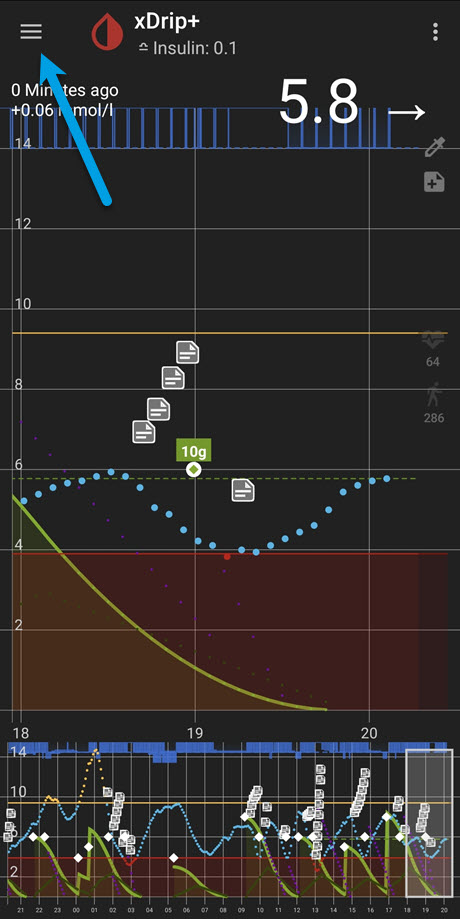
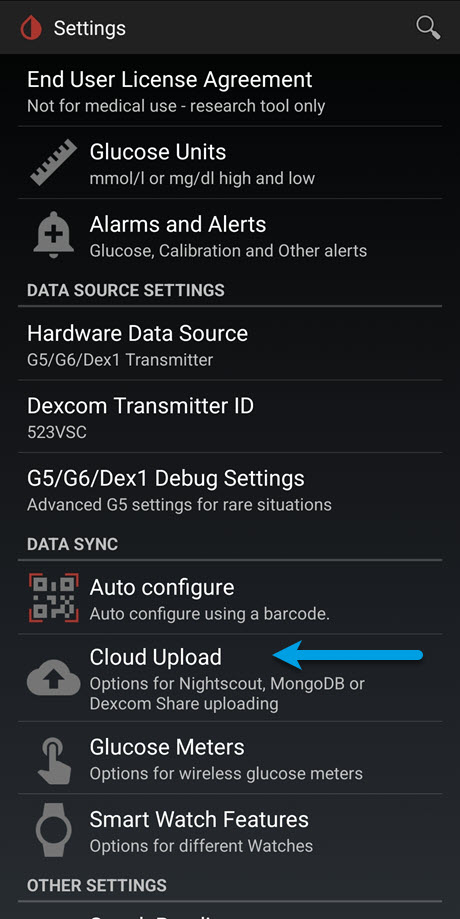
- If you are using Dexcom Server To get the data from xDrip+ to the Dexcom Share Server you first need an account on the Dexcom site. And to add it to your Xdrip Cloud Upload / Dexcom Share Server Upload
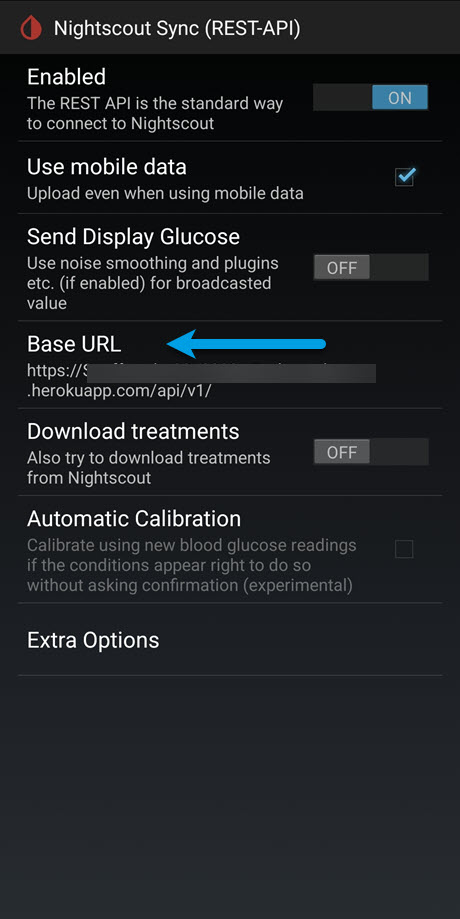
You should have already setup Xdrip and have readings coming into it from your CGM. - This is the same place you are also going to need to add your Nightscout Datasource in to Xdrip. This is located in Nightscout Sync (REST-API) Base URL and to also make sure you are getting readings from your Dexcom One into Xdrip.
.jpg "Nightscout Sync (REST-API)")
It will now be best to check your Echo Show or Echo Dot to see if it is working correctly, before you do your Routines in the Alexa App. You can see some of the things you can ask Alexa on the Amazon Site Skills, also on Jade Web site or APP.
Alexa skill - My Jade by Jade Diabetes
Important Notice - This Video is a Old Way Watch with Caution
Alexa ask Sugarmate for my latest reading
If all is working and you are getting your readings read out to you, you can now setup Routines to have it read out your readings automatically from moving the cube.
My Jade with Alexa Routine
- Open the Alexa app
-
Tap the menu icon in the Bottom left corner, and tap “routines”
-
Tap the plus button (+) at the top right to create a new routine.
-
Enter a routine name (I used “Jade”)
- Tap “whens + ”
then tap “voice”
and add your custom phrase (I used “Jade”) But you can add any name you like.
6. Tap “add action” then tap “skills”
7. Tap Your Skills,
8. Then tap “next” upper right to confirm
9. Tap “save”
10. Now ask your Echo Show. (Alexa Jade)
Enabling Jade Diabetes in Amazon Alexa APP
Amazon Alexa Skill & Games
On your Mobile:
- Open the Alexa app
-
Tap the menu icon in the Bottom left corner
-
Select Skills & Games
-
Search for “My Jade” or “Jade Diabetes”
-
Tap the My Jade by Jade Diabetes skill
-
Tap Launch or Enable
-
Tap Link AccountLink Account in the skill’s settings page
-
This will open a Jade Diabetes-branded pop-up window
- Login using your Jade email address and password Account
- All Done! Now Try the suggestions below!
Important Notice - This Video is a Old Way Watch with Caution
Amazon Alexa Routines
You should now have a fully working T1 Pro Dice (cube)
Congratulations and my apologize for the length of this setup was a hard one for me to write up with trying to give as much details as I could.
Please Subscribe to our UTUBE Channel
Why Not take visit
 UK Wide Cycle Ride - Diabetes.uk
  or Diabetes.UK Swim22
  or
or  Diabetes UK Month of Miles Challenge
  for all of your Diabetes Needs!